Una Pregunta Incómoda
Todo comienza igual. Instalas Windows 11 limpio, recién salido del horno, y antes de abrir tu primer programa ya hay widgets con noticias, sugerencias en el menú Inicio, búsquedas que se van a Bing y un par de servicios enviando datos a Microsoft.
Y ahí aparece la pregunta:
"¿Por qué un sistema recién instalado ya viene lleno de cosas que nunca pedí?"
Parece trivial, pero me llevó a revisar uno por uno los famosos "comandos de optimización" que circulan en internet. Muchos funcionan. Otros no hacen nada. Y algunos son derechamente peligrosos.
Esta es la lista que sobrevivió.
Antes de Tocar Nada
Todos los comandos se ejecutan en Windows PowerShell como Administrador: clic derecho en Inicio y luego Terminal (Administrador).
Primero, un seguro de vida. Crea un punto de restauración:
Enable-ComputerRestore -Drive "C:\"
Checkpoint-Computer -Description "Antes de optimizar" -RestorePointType MODIFY_SETTINGS
Windows permite crear un punto de restauración cada 24 horas. Si ya creaste uno hoy, el comando avisará y no hará nada, y eso está bien.
Y una regla simple: aplica los cambios de a uno. Si algo no te convence, sabrás exactamente qué deshacer. Cada sección incluye su comando para volver atrás.
1. Menos Telemetría
$ruta = "HKLM:\SOFTWARE\Policies\Microsoft\Windows\DataCollection"
if (-not (Test-Path $ruta)) { New-Item -Path $ruta -Force | Out-Null }
New-ItemProperty -Path $ruta -Name "AllowTelemetry" -Value 0 -PropertyType DWord -Force | Out-Null
Reduce los datos de diagnóstico que se envían a Microsoft. Un detalle honesto: en las ediciones Home y Pro, Windows aplica igual el mínimo obligatorio. El cero absoluto solo rige en Enterprise y Education.
Para deshacer: Remove-ItemProperty -Path "HKLM:\SOFTWARE\Policies\Microsoft\Windows\DataCollection" -Name "AllowTelemetry"
2. Servicios que Sobran
$servicios = @("DiagTrack", "dmwappushservice", "MapsBroker", "RetailDemo")
foreach ($s in $servicios) {
    Stop-Service -Name $s -Force -ErrorAction SilentlyContinue
    Set-Service -Name $s -StartupType Disabled -ErrorAction SilentlyContinue
}- DiagTrack: telemetría y diagnósticos
- dmwappushservice: mensajería push que usa la telemetría
- MapsBroker: descarga de mapas sin conexión
- RetailDemo: el modo demostración de las tiendas
Muchas guías también desactivan SysMain y WSearch. Yo no lo haría: SysMain hace que los programas abran más rápido y WSearch es lo que permite que la búsqueda del menú Inicio sea instantánea. Solo tiene sentido en un PC muy antiguo con disco mecánico.
Para deshacer: Set-Service -Name DiagTrack -StartupType Automatic. Lo mismo con MapsBroker (Automatic), y con dmwappushservice y RetailDemo usando Manual, que es como vienen de fábrica.
3. Chao a los Anuncios del Menú Inicio
$ruta = "HKCU:\Software\Microsoft\Windows\CurrentVersion\ContentDeliveryManager"
$claves = @("SubscribedContent-338388Enabled", "SubscribedContent-338389Enabled", "SubscribedContent-310093Enabled", "SilentInstalledAppsEnabled", "SoftLandingEnabled")
foreach ($clave in $claves) {
    New-ItemProperty -Path $ruta -Name $clave -Value 0 -PropertyType DWord -Force | Out-Null
}
Elimina las sugerencias del menú Inicio, los "consejos" que en realidad son publicidad y la instalación silenciosa de apps promocionadas.
Para deshacer: ejecuta el mismo bloque cambiando -Value 0 por -Value 1.
4. Sin Widgets y Sin Bing en el Menú Inicio
$dsh = "HKLM:\SOFTWARE\Policies\Microsoft\Dsh"
if (-not (Test-Path $dsh)) { New-Item -Path $dsh -Force | Out-Null }
New-ItemProperty -Path $dsh -Name "AllowNewsAndInterests" -Value 0 -PropertyType DWord -Force | Out-Null

$explorer = "HKCU:\Software\Policies\Microsoft\Windows\Explorer"
if (-not (Test-Path $explorer)) { New-Item -Path $explorer -Force | Out-Null }
New-ItemProperty -Path $explorer -Name "DisableSearchBoxSuggestions" -Value 1 -PropertyType DWord -Force | Out-Null
Quita el panel de widgets y hace que el menú Inicio busque solo en tu PC, sin mandar cada cosa que escribes a Bing. Requiere cerrar sesión o reiniciar.
Para deshacer:
Remove-ItemProperty -Path "HKLM:\SOFTWARE\Policies\Microsoft\Dsh" -Name "AllowNewsAndInterests"
Remove-ItemProperty -Path "HKCU:\Software\Policies\Microsoft\Windows\Explorer" -Name "DisableSearchBoxSuggestions"
5. Hibernación Fuera
powercfg -h offElimina hiberfil.sys y libera varios GB. Ojo: también desactiva el inicio rápido. Si usas notebook y te gusta hibernarlo, sáltate este paso.
Para deshacer: powercfg -h on
6. Que el SSD Respire (TRIM)
fsutil behavior query DisableDeleteNotifySi responde 0, TRIM ya está activo y no hay nada que hacer. Si responde 1, actívalo:
fsutil behavior set DisableDeleteNotify 0TRIM mantiene el rendimiento del SSD con el paso del tiempo.
7. Limpieza de Temporales
Get-ChildItem -Path $env:TEMP, "C:\Windows\Temp" -Force -ErrorAction SilentlyContinue | Remove-Item -Recurse -Force -ErrorAction SilentlyContinue
Clear-RecycleBin -Force -ErrorAction SilentlyContinue
Borra los temporales del usuario y del sistema, y vacía la papelera. Los archivos en uso simplemente se saltan.
Lo que no hay que borrar es la carpeta Prefetch: Windows la usa para abrir programas más rápido y la vuelve a crear de todas formas.
8. Menos Animaciones
Set-ItemProperty -Path "HKCU:\Control Panel\Desktop\WindowMetrics" -Name "MinAnimate" -Value "0"
New-ItemProperty -Path "HKCU:\Software\Microsoft\Windows\CurrentVersion\Explorer\Advanced" -Name "TaskbarAnimations" -Value 0 -PropertyType DWord -Force | Out-Null
Adiós a la animación al minimizar y maximizar ventanas, y a las de la barra de tareas. Se nota al cerrar sesión. Si prefieres casillas en vez de comandos, ejecuta SystemPropertiesPerformance y elige Ajustar para obtener el mejor rendimiento.
Para deshacer: repite los comandos con "1" y 1.
9. Plan de Energía de Alto Rendimiento
powercfg -setactive 8c5e7fda-e8bf-4a96-9a85-a6e23a8c635cMantiene el CPU listo para responder. En muchos notebooks nuevos este plan viene oculto y el comando da error. En ese caso, primero hay que crearlo:
powercfg -duplicatescheme 8c5e7fda-e8bf-4a96-9a85-a6e23a8c635cEse comando muestra un GUID nuevo, que es el que se usa con powercfg -setactive. Con batería consume más, así que en notebook úsalo enchufado.
Para deshacer: powercfg -setactive 381b4222-f694-41f0-9685-ff5bb260df2e (el plan Equilibrado).
10. Game Bar Sin Grabar en Segundo Plano
New-ItemProperty -Path "HKCU:\Software\Microsoft\Windows\CurrentVersion\GameDVR" -Name "AppCaptureEnabled" -Value 0 -PropertyType DWord -Force | Out-Null
New-ItemProperty -Path "HKCU:\System\GameConfigStore" -Name "GameDVR_Enabled" -Value 0 -PropertyType DWord -Force | Out-Null
Evita que Windows grabe mientras juegas. El Modo de juego (Configuración > Juegos) déjalo activado: ese sí ayuda.
Para deshacer: los mismos comandos con -Value 1.
11. Cuando Internet Se Pone Raro
ipconfig /flushdns
netsh winsock reset
Útil cuando hay páginas que no cargan o errores de conexión sin explicación. El segundo comando pide reiniciar.
12. Revisar la Salud del Sistema
DISM /Online /Cleanup-Image /RestoreHealth
sfc /scannow
Primero DISM repara la imagen de Windows y después SFC corrige los archivos dañados. En ese orden. Para revisar el disco sin reiniciar: chkdsk C: /scan.
13. Silencio de Notificaciones
New-ItemProperty -Path "HKCU:\Software\Microsoft\Windows\CurrentVersion\PushNotifications" -Name "ToastEnabled" -Value 0 -PropertyType DWord -Force | Out-NullApaga todas las notificaciones emergentes. Si prefieres elegir app por app: Configuración > Sistema > Notificaciones.
Para deshacer: el mismo comando con -Value 1.
Lo Que No Recomiendo
Hay "trucos" que aparecen en todas las listas y que conviene evitar:
- Desactivar Windows Defender: te quedas sin protección a cambio de una mejora que casi no se nota
- Desactivar el autoajuste de TCP (
autotuninglevel=disabled): suele empeorar la velocidad de descarga - Limpiadores de registro: no aceleran nada y pueden romper programas
- Borrar Prefetch o desactivar el archivo de paginación
La Paradoja de la Optimización
Hay algo curioso en todo esto. Pasamos horas buscando el comando mágico que haga volar al PC, cuando la mayor diferencia suele estar en lo simple: un SSD, suficiente RAM, drivers al día y no tener cuarenta pestañas abiertas.
Los comandos ayudan. Pero no hacen milagros.
Reflexión Final
"Optimizar no es desactivar todo. Es entender qué hace cada cosa y quedarse solo con lo que sirve."
Esta lista nace de esa curiosidad: la de no conformarse con copiar y pegar, sino entender qué hace cada línea antes de ejecutarla.
Algunos cambios requieren reiniciar. Y las actualizaciones grandes de Windows pueden devolver ciertos ajustes a su estado original, así que vale la pena guardar esta página.
Saludos.
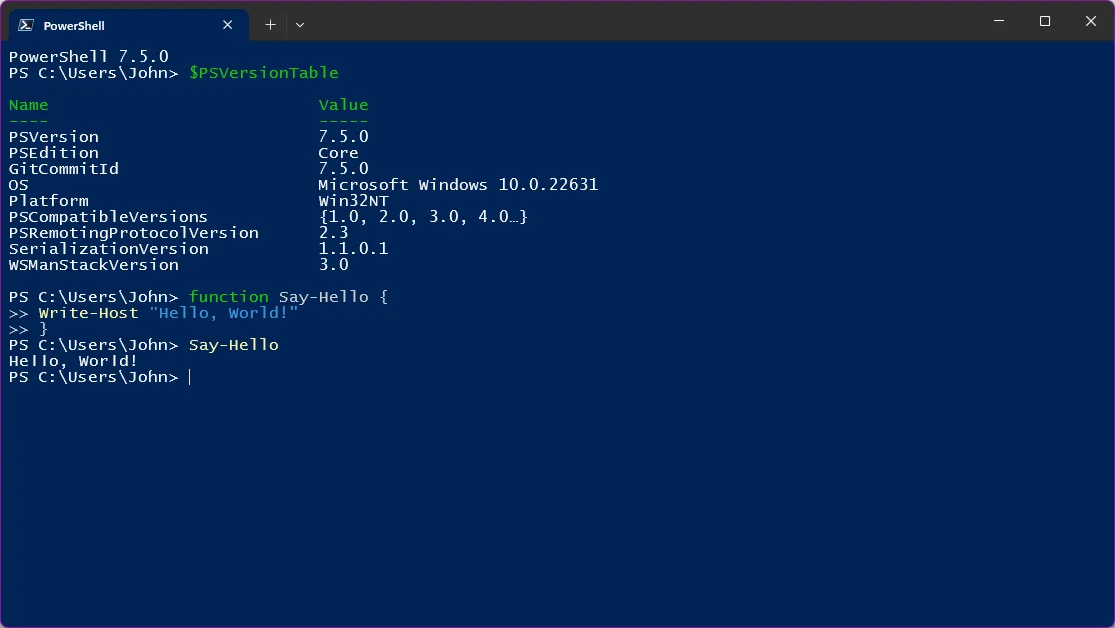
Imagen: captura de PowerShell 7.5 en Windows, Microsoft Corporation, licencia MIT, vía Wikimedia Commons.